
Your first application
How to create your application in Jet HR
Creating an API Application and Token
This guide walks you through the process of creating an API application and generating your authentication token in Jet HR.
Prerequisites
Before you begin, ensure you have:
- Admin access to your Jet HR workspace
- Appropriate permissions to manage company settings
Step-by-Step Guide
1. Access Company Settings
Navigate to Company Settings (Impostazioni azienda) from the main sidebar menu.
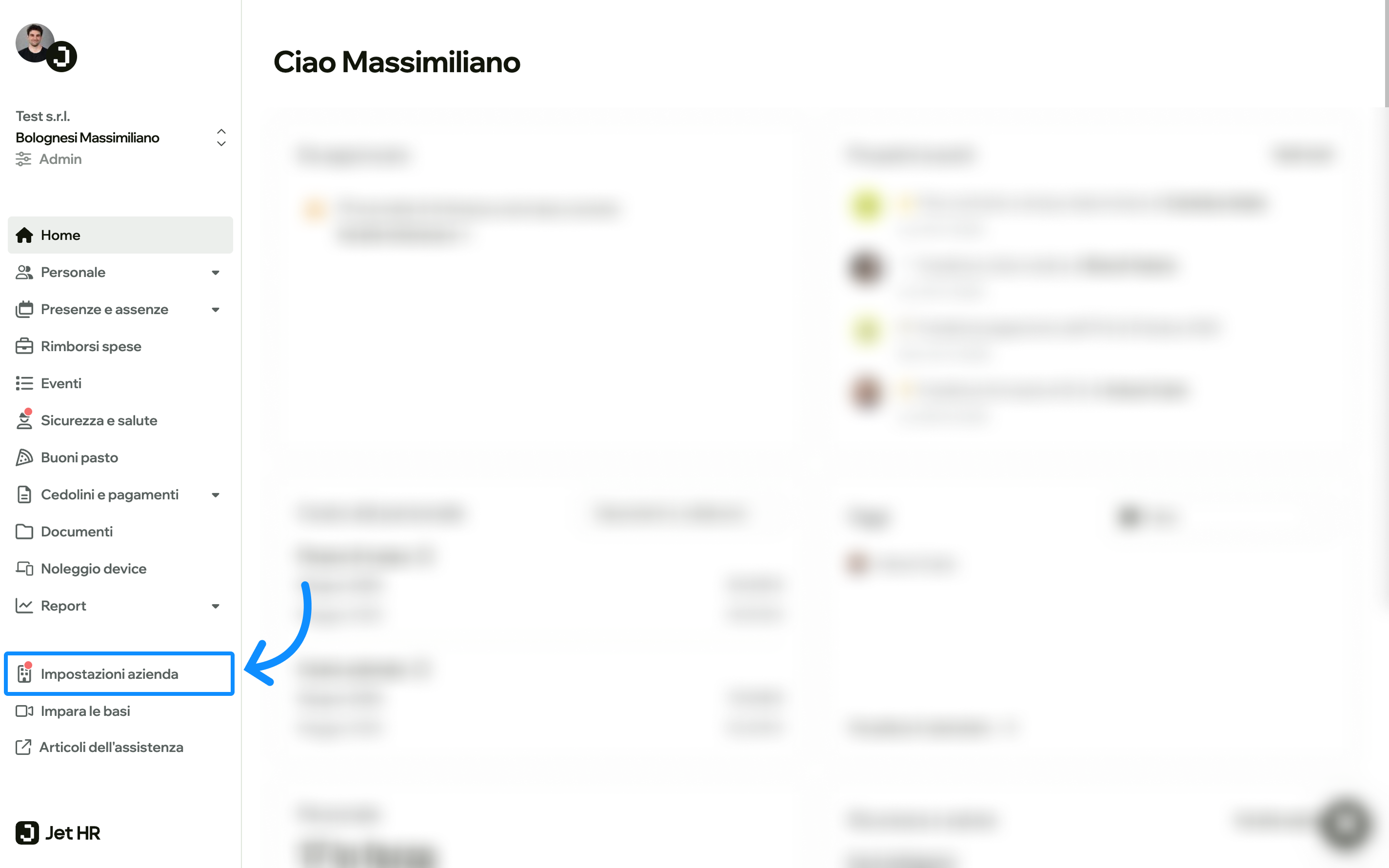
2. Open the API Section
In the left sidebar of Company Settings, locate and click on API.
You'll land on the "My Applications" (Le mie applicazioni) page where you can manage all your API applications.
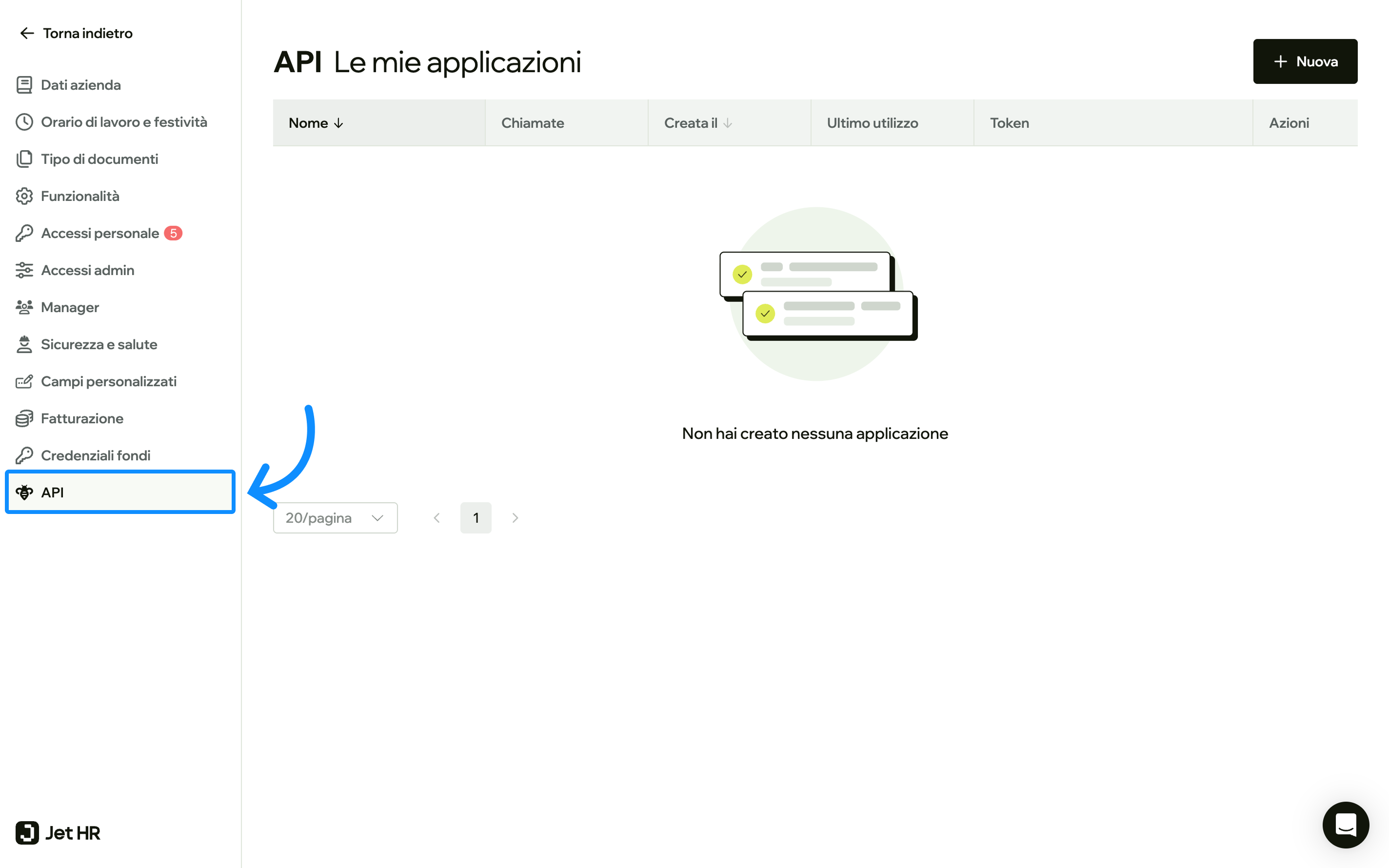
Note: If this is your first time here, you'll see an empty state with the message "You haven't created any applications yet."
3. Create a New Application
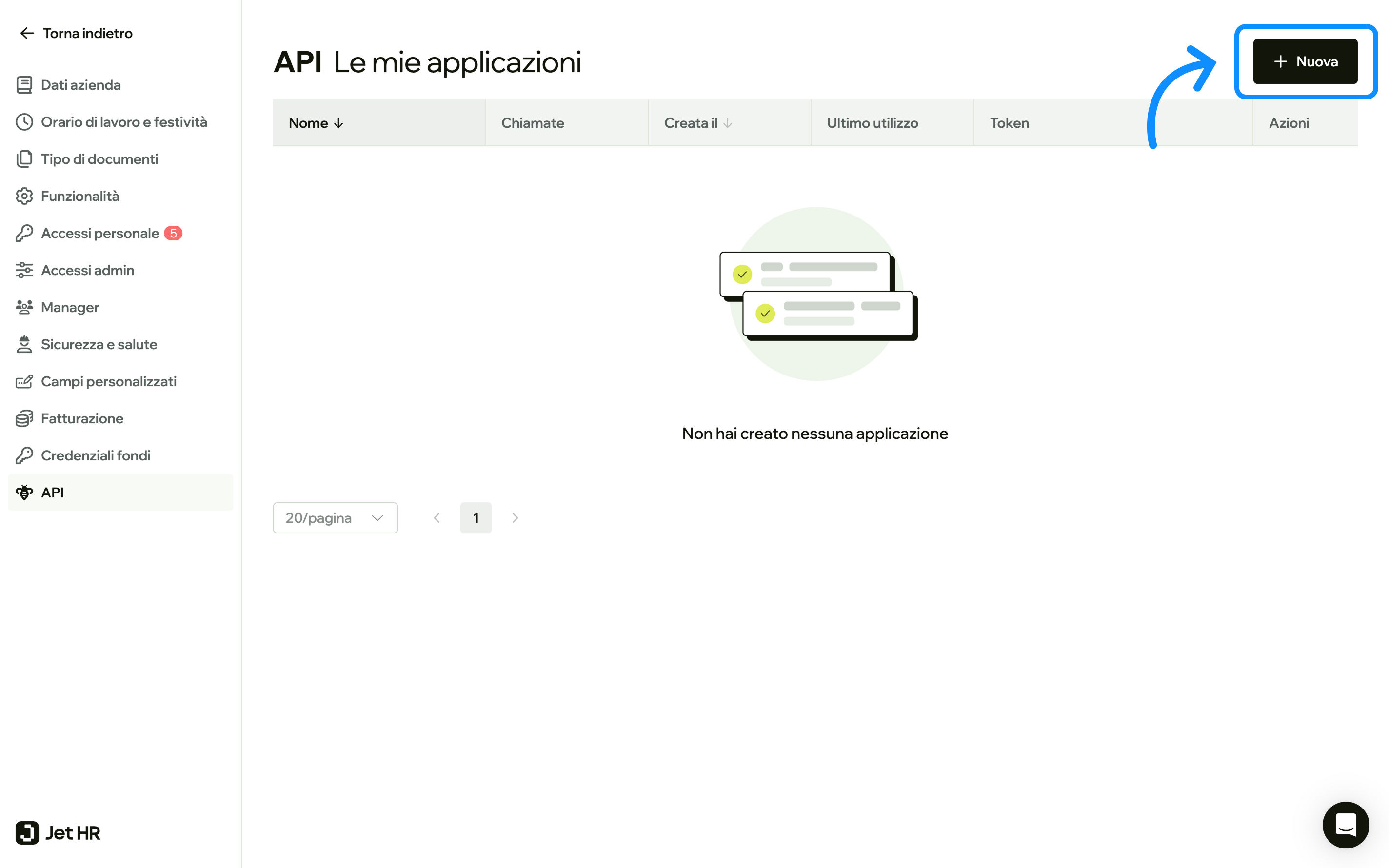
Click the + Nuova (New) button in the top-right corner to start creating your application.
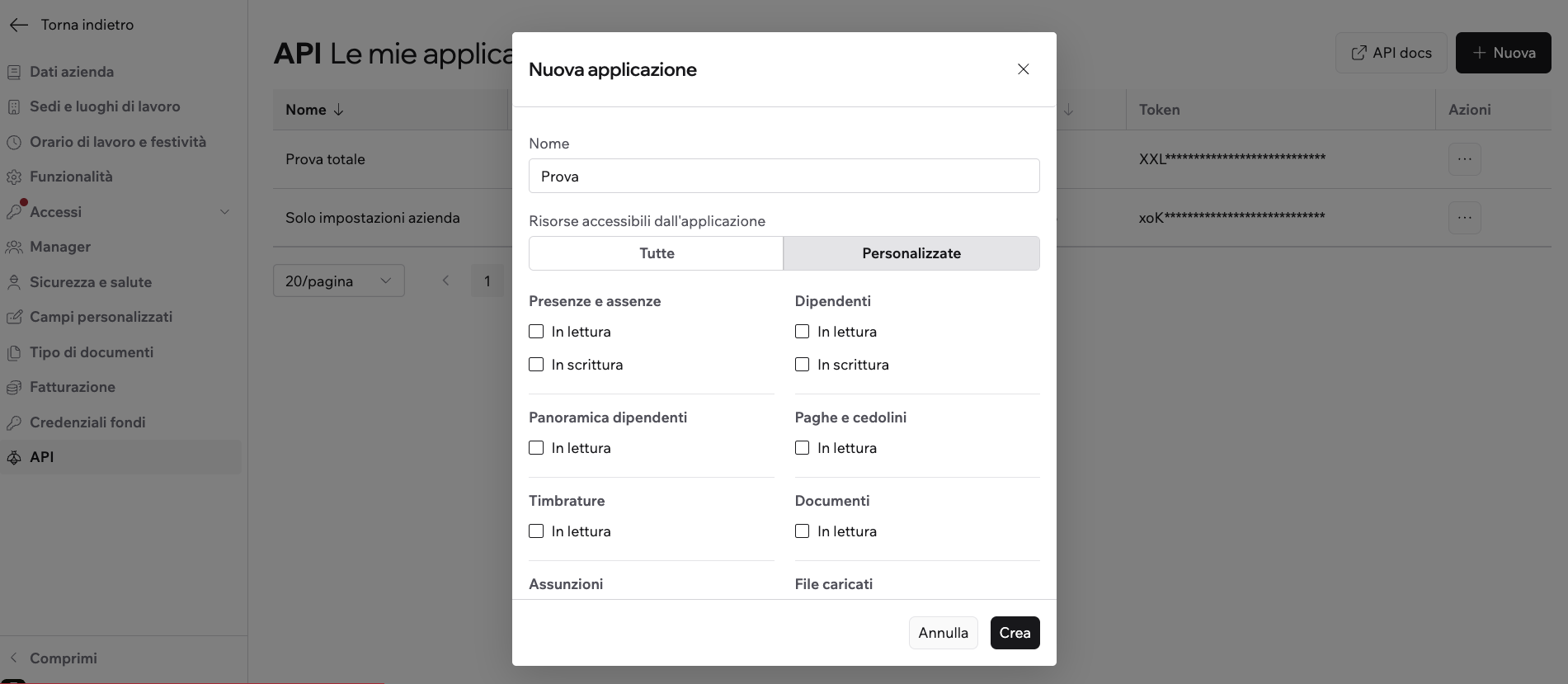
A modal dialog will appear with the following fields:
- Name: Enter a descriptive name for your application (e.g., "Test application", "Production Integration", "Development Environment")
- Accessible resources: Choose between All or Customize
Best practice for application namingUse clear, descriptive names that indicate the application's purpose or environment. This makes management easier when you have multiple applications.
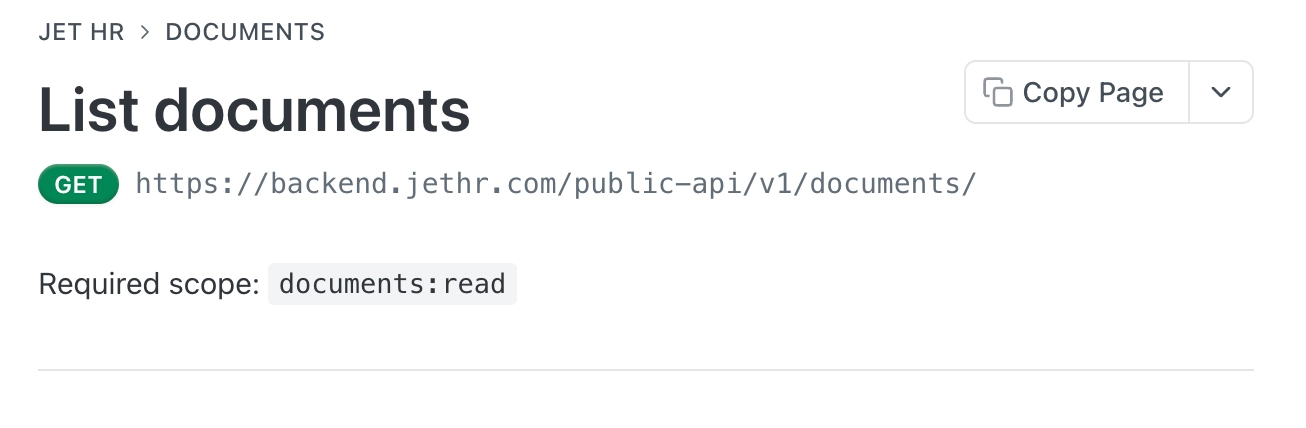
Customize resource accessIf you choose to Customize resource access you will have to select, for each one, whether access is read-only or also includes write permissions.
From an endpoint's reference page, you can see which scope is required for your app to access it.
Click Crea (Create) to generate your application.
4. Save Your API Token
This is the most critical step.
After creating your application, a modal will display your newly generated API token.
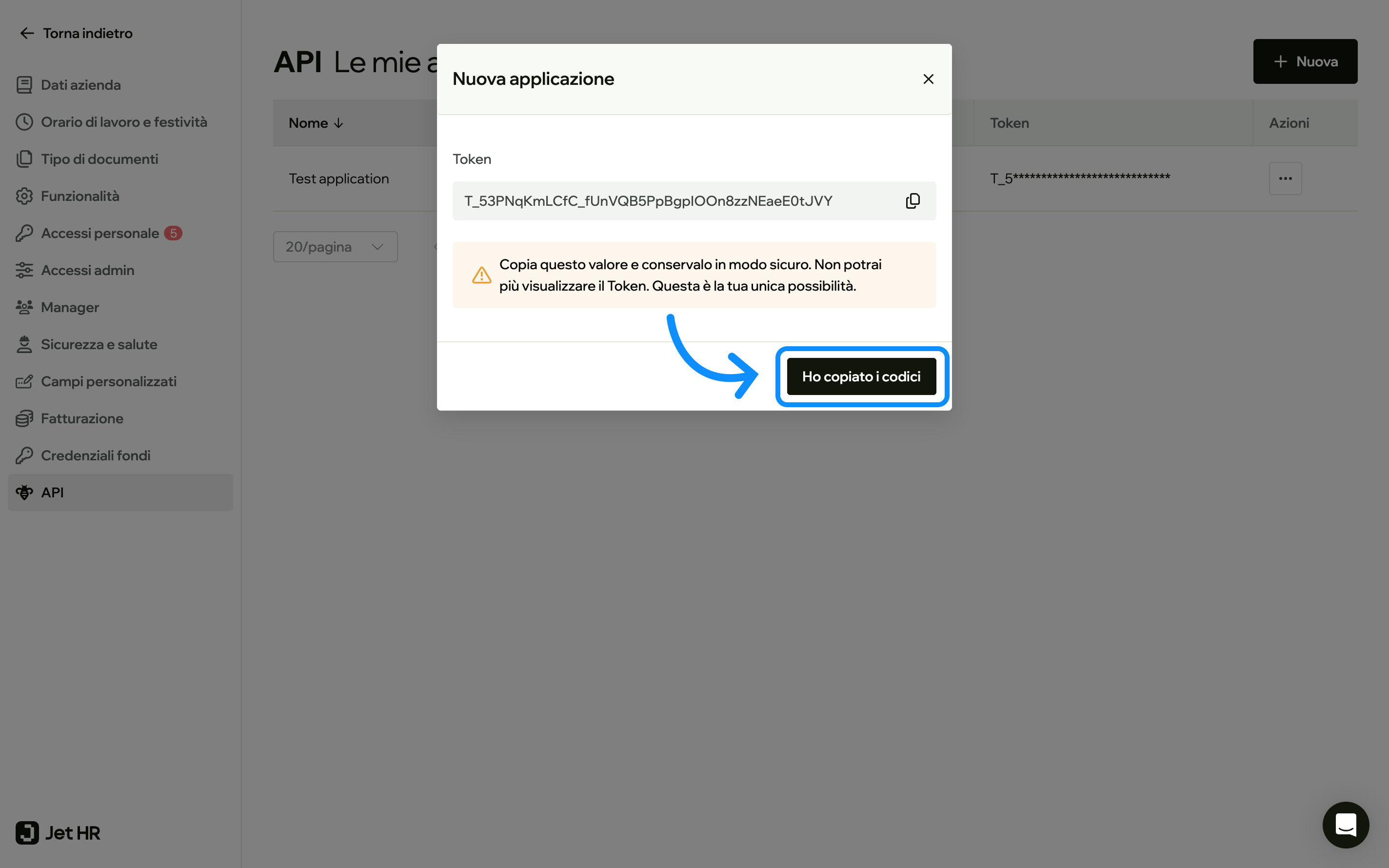
⚠️ IMPORTANT SECURITY NOTICE
- Copy this token immediately — this is your only opportunity to view it
- Store it securely — treat it like a password (use environment variables, secret managers, or secure vaults)
- Never commit it to version control — add it to your
.gitignoreor.envfiles - You cannot retrieve this token again — if lost, you'll need to generate a new application
The token format will look like: T_53PNqKmLCfC_fUnVQB5PpBgplOOn8zzNEaeE0tJVY
Once you've safely stored your token, click Ho copiato i codici (I've copied the codes) to proceed.
5. Verify Your Application
After closing the modal, you'll see your new application listed in the applications table.
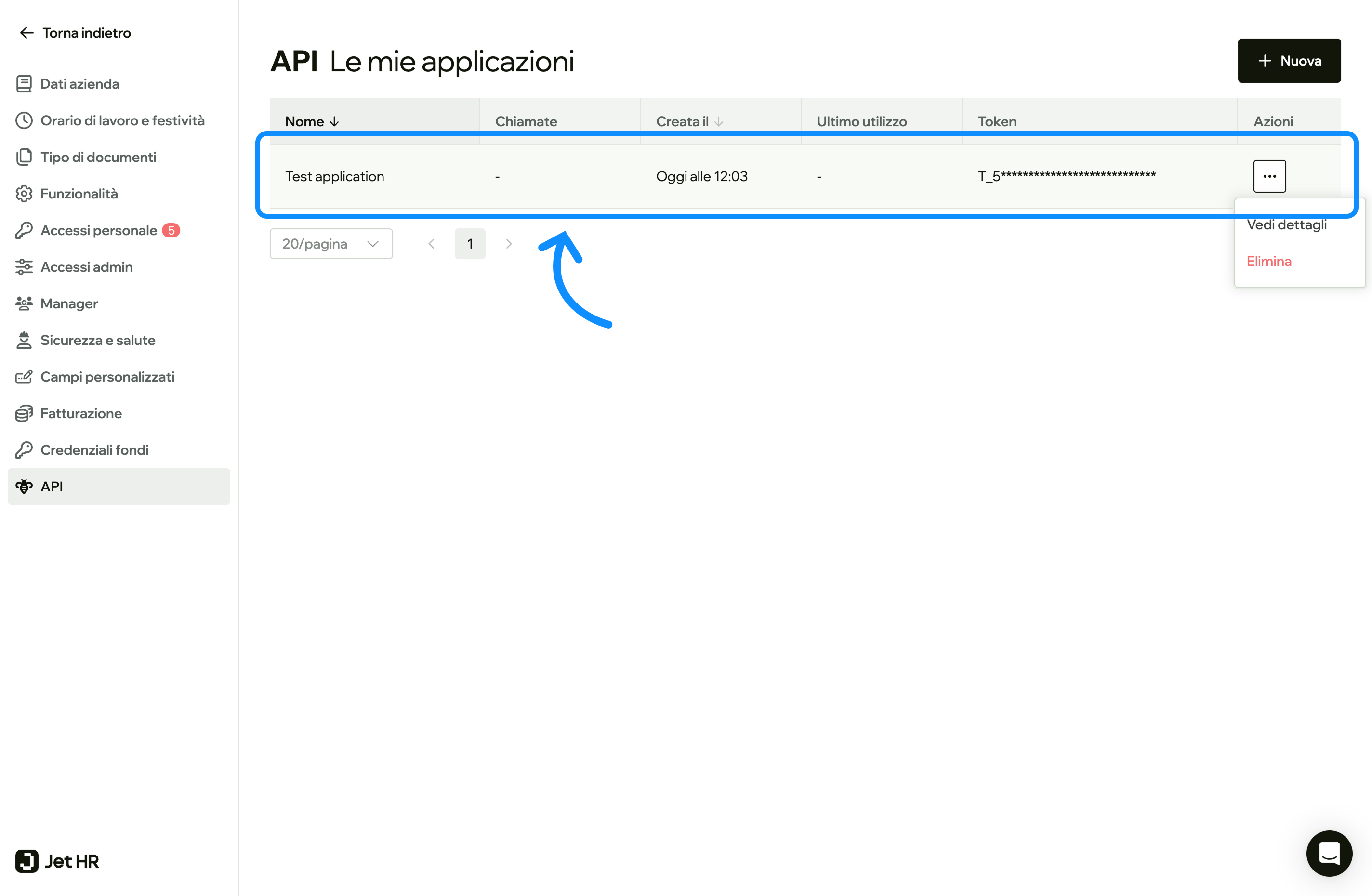
The table displays:
- Nome (Name): Your application name
- Chiamate (Calls): Number of API calls made
- Creata il (Created on): Creation date and time
- Ultimo utilizzo (Last used): When the token was last used
- Token: Masked token (T_5*********************...)
- Azioni (Actions): Options menu with "Vedi dettagli" (View details) and "Elimina" (Delete)
Managing Your Applications
View Application Details
Click the three-dot menu (⋮) next to any application and select Vedi dettagli to view:
- Usage statistics
- Request history
- Token information (masked)
Delete an Application
If you need to revoke access:
- Click the three-dot menu (⋮)
- Select Elimina (Delete)
- Confirm the deletion
Warning: Deleting an application immediately invalidates its token. Any services using this token will lose access instantly.
Next Steps
Now that you have your API token, you can:
- Integrate it into your application
- Make authenticated API requests
- Monitor usage in the application dashboard
Best Practices
- One application per integration — create separate applications for different services or environments
- Rotate tokens regularly — for enhanced security, periodically create new applications and migrate
- Monitor usage — regularly check the "Chiamate" (Calls) column to detect unusual activity
- Document your applications — keep internal documentation of which application serves which purpose
Troubleshooting
Q: I lost my token, what should I do?
A: Unfortunately, tokens cannot be recovered. You'll need to create a new application and update your integration with the new token.
Q: Can I regenerate a token for an existing application?
A: No, you need to create a new application to get a new token. Delete the old application once you've migrated to the new one.
Q: How many applications can I create?
A: There's no specified limit, but keep your applications organized by creating only what you need.
Need help? Contact your Jet HR administrator or support team for assistance.
Updated about 2 months ago